![Diane Poremsky [Outlook MVP]](http://www.outlook-tips.net/images/2014/MVP_BlueOnly.png)
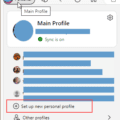
If you have more than one Microsoft account, you’ve faced the problem of either signing in and out to switch accounts or using Sign in with a different account to switch accounts and discovering you were switched back to the original account. The solution: browser profiles. All major browsers support separate profiles, and they are easy to set up and switch between in Edge and … [Read more...] about Log into multiple Outlook on the web accounts
Tips Archive
Keeping Hackers out of Microsoft accounts
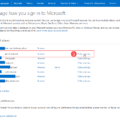
Anyone with an old outlook.com account – including Hotmail, Live, or MSN addresses – is highly likely to have the address “out in the wild”, either due to a data breech or posted to a public forum or website.You can google for your address to see if it was posted on any public facing websites.You can check to see if addresses were in data breeches at … [Read more...] about Keeping Hackers out of Microsoft accounts
Microsoft Account Closure Email
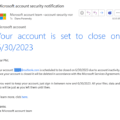
Did you receive an email from Microsoft that your account was going to be closed and wonder if the message was real or a phishing attempt?Yes, it might be real, especially if you haven't logged into the account in 2 years. But hackers will also send these emails, in a phishing attempt to get your log in details. So, when you get a message do not click the link in the … [Read more...] about Microsoft Account Closure Email
Outlook on the web Quick Actions moved to the right
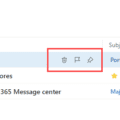
Users began complaining last week that the quick actions in Outlook on the web (when the reading pane is off or on the bottom) moved from the From field on the left side of the message list to the far right, in the Received column, which for many users, is a long mouse movement to use the quick actions.Quick Actions on the left, between the sender name and subject field: … [Read more...] about Outlook on the web Quick Actions moved to the right
Automatically sign out of Outlook.com
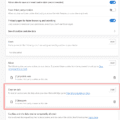
... or stop automatically signing in to Outlook.com. When I open Outlook.com, I'm always automatically signed into my account. I don't want this to happen. According to Help, I just need to uncheck the box to "stay logged in" but that doesn't seem to make a difference. How do I prevent this? If you don't want to stay signed in when you close the browser, don't save … [Read more...] about Automatically sign out of Outlook.com